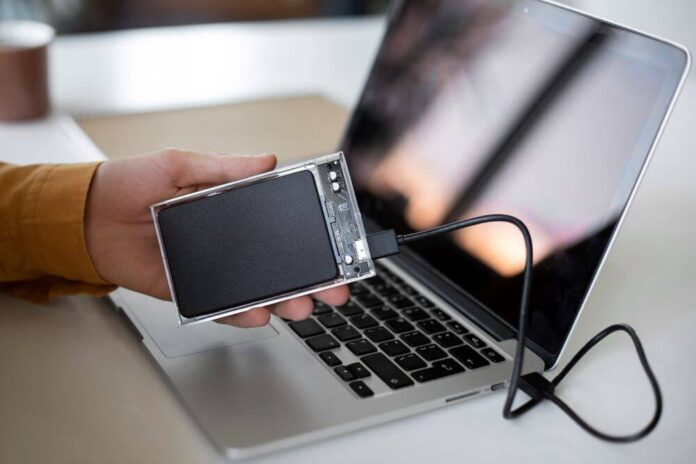
An external hard drive is a versatile storage device commonly used for storing and backing up your files. However, sometimes you may encounter a frustrating issue when your hard drive fails to mount on Mac. This becomes even more concerning when the drive holds essential documents, photos, work files, or backups. When a drive doesn’t mount, it becomes unrecognisable to your Mac, meaning it won’t appear in Finder or on the Desktop for access.
While the issue is common, the good news is that there are several methods available to fix an unmounted external hard drive. In this guide, we’ll explore different methods on how to fix external hard drive not mounting on Mac. With the right approach, you can often restore access to your drive and prevent future mounting issues.
Common Reasons for Hard Drive Not Mounting on Mac
Before you apply an adequate workaround to fix the external hard drive not mounting on Mac, it’s important to understand what may be causing the issue. Some main reasons include:
- File System Incompatibility: Some drives use NTFS (Windows format), which macOS may not mount with write access. Sometimes it fails to mount entirely.
- Corrupted File System: Your file system may be corrupted due to improper ejection, unexpected system shutdowns, etc., which can corrupt the drive’s directory structure, preventing macOS from mounting the drive.
- macOS Glitches: Temporary system bugs in apps installed on your Mac or its outdated macOS versions may cause mounting issues.
- Drive Hardware Failure: With continuous usage for a long time, the hard drive develops bad sectors, ageing disk components, or physical damage, which can stop the drive from mounting.
- Insufficient Power Supply: Some HDDs require additional power, and without it, your Mac may fail to detect or properly mount the drive.
How do I Fix an External Hard Drive Not Mounting on Mac?
Now that you are familiar with different reasons why your external hard drive fails to mount on Mac, it’s important to immediately apply the adequate fixes. For this, you can apply the below methods one-by-one:
Method 01: Configure macOS Finder Settings
Sometimes, the external hard drive connected to your Mac shows up in Disk Utility but not anywhere else. One of the main reasons for this issue is improper settings in the Finder Preferences, where the option to show external disks on the Desktop and in Finder isn’t enabled. To fix this issue, you have to:
- Open Finder from the Dock and go to Finder > Preferences from the menu bar located at the top.
- In the Preferences window, select the General tab.
- Navigate to Show these items on the Desktop section, check the External disks option. This will make your external drive appear on the Desktop.
- Next, click the Sidebar tab. From the Locations section, select the External disks checkbox.
Once done, check if the external hard drive appears in the Finder sidebar.
Method 02: Repair Driver Errors using First Aid
macOS provides an in-built First Aid utility that you can use to fix drive-related errors. This tool checks the health of both internal and external drives. If it detects a drive that isn’t mounting on your Mac, it automatically diagnoses the issue and attempts to resolve it with a suitable fix. Follow the below steps to repair driver issues using the First Aid utility:
- Launch Finder, go to Applications > Utilities > Disk Utility.
- Now, select your external hard drive from the left navigation pane.
- Tap First Aid from the top and click Run to check and repair disk errors.
Method 03: Force Mount the Drive Using Terminal
Instances may occur when your external hard drive appears in Disk Utility, but its data can’t be accessed. In such a case, you can follow the below steps to force mount disk on Mac via the Terminal app:
- Open the Terminal app.
- Type diskutil list in the command line and press the Enter key. This command displays a list of all connected devices, with names and numbers.
- Now, type the command: sudo mkdir /Volume/usb, replacing “usb” with the name of the external hard disk.
- Enter your admin password when asked.
- Lastly, type the command: sudo mount -t hfs /dev/disk1 /Volumes/usb. Replace “disk1” with your external hard disk number and “usb” with the name to complete the forced mount.
Additional Tip: How to Recover Data From an External Hard Drive Not Mounting on Mac?
Ever wondered what if data loss happens on your external hard drive that fails to mount on your Mac? In such cases, you can use previously created backups to restore your lost files. However, if you don’t have any backup, third-party free Mac data recovery software tools like Stellar Data Recovery Free for Mac can help you in data recovery. These tools perform a thorough scan of your device to find all the recoverable files.
Stellar Data Recovery Free for Mac is an all-in-one free Mac data recovery software known for several features, such as:
- It allows you to restore files deleted due to several reasons, including accidental deletion, formatting, system errors, and many more.
- You can restore deleted files of various types, such as photos, videos, documents, etc.
- The free version allows you to recover deleted files up to 1 GB for free. To restore files of a larger size, you can use the premium versions.
- The software offers a simple and intuitive interface, making it easy even for beginners to restore lost files.
Here’s how to recover files from an external hard drive using this free Mac data recovery software:
Step 1: Visit Stellar’s official website, then download and install the Stellar Data Recovery Free for Mac tool on your device. Also, connect your external hard drive to the Mac using a working USB cable or adapter.
Step 2: Now, launch the software and from the homepage, choose the type of file you need to restore (or select Recover Everything). Click Next to continue.
Step 3: From the list of available drivers, select your external hard drive and click Scan to initiate the scanning process.
Step 4: Once the scan completes, preview the recoverable results and choose the photos, documents, videos, and other files you need to restore. Click Recover to save selected files on a different storage location (not the same external drive).
Note: Saving the recovered file to a different storage location prevents overwriting and ensures safe data restoration.
Wrapping Up
Having an external hard drive that won’t mount on a Mac can be distressing, but it doesn’t mean that the data is gone forever. In most cases, the issue is caused by minor glitches, cable faults, disk errors, or file system problems, which can be resolved easily. Irrespective of these reasons, you can try built-in macOS tools like Disk Utility, Terminal, or Safe Mode to fix the issue.
Moreover, if you experienced data loss on your external hard drive that is not mounting on Mac, try a professional tool like Stellar Data Recovery Free for Mac to restore your lost files without any cost. This ensures that your files remain safe, even if the drive’s file system is severely corrupted.


